User Manual
Your MB Music module, controlled from your iPad.
The MBMusic PRO.App is the free control centre for the Pro.Max, Pro.DX and Pro.XS sound modules. Play MIDI songs and backing tracks, show lyrics with chords, and build your own sounds – on stage or at home.
Welcome
The MBMusic PRO.App turns your iPad into the control centre for your MB Music sound module. The sound comes from the module – the app tells it what to play. With it you can
- play MIDI songs and MP3 playbacks and mix each channel individually,
- follow lyrics with chords – on request also on your singer’s iPhone,
- prepare your gig with SetLists and the live mode,
- build your own sounds (Creator, Performance, FX, Synth) and let the Arranger accompany you.
What you need
- an iPad with iPadOS 17 or later (the app runs in landscape),
- an MB Music module: Pro.Max, Pro.DX or Pro.XS,
- an active USB hub with its own power supply, plus suitable cables,
- optionally a USB MIDI keyboard and an iPhone as a lyrics screen.
The app is free – no in-app purchases and no subscription. You download it from the Apple App Store. Songs are not included: you bring your own MIDI files, styles and MP3s.
Good to know: Without a module the app runs in demo mode. You can look at and operate everything, but you won’t hear the module sound. The only exception is the Synth: it generates sounds within the iPad itself.
Connecting
The iPad and the module talk to each other via a USB cable (USB MIDI). Bluetooth is not supported. You’ll be ready to play in three steps:
- Connect the module to the iPad via an active USB hub and plug in the hub’s power supply.
- Switch on the module and open the MBMusic PRO.App.
- Choose a song and get started. The app detects the module automatically – you don’t need to pair anything.
Which cable for which iPad?
- iPad with USB-C: USB-C cable directly to the hub.
- Older iPad with Lightning: additionally the Apple Lightning-to-USB camera adapter (ideally the version with a power port).
- Keyboard (optional): plug your USB MIDI keyboard into the hub as well.
Important: The Pro.DX and Pro.XS absolutely require an active USB hub with a power supply. Without one it stays silent – that is not a defect, just missing power. With the Pro.Max, an active hub is strongly recommended. A simple hub without a power supply is not enough.
You’ll find an illustrated quick guide as a PDF in the support section at pro-app.live.
First steps
On launch the app briefly shows its logo and then opens the HUB – the overview of all areas. If a module is connected, you’ll see its name with a green light at the top (e.g. PRO.MAX).
Checking that the module is connected
- Tap the gear icon (⚙︎) at the top right. The Einstellungen (settings) open.
- Under GERÄTE (devices), your module is listed next to MIDI-Ausgang · MBMusic-Modul (MIDI output). A green light means: connected.
- If you have a keyboard connected, select it next to MIDI-Eingang · Live-Keyboard (MIDI input).
Your first sound
Open the HUB, tap MIDI Player and start a song with the large play button. No songs yet? Then first import some in the Library.
Without a module: demo or lyrics
If the app can’t find a module, it asks on first launch how you want to use it:
- Demo mode: all areas to try out, but without module sound. MP3 playback is limited to 20 seconds per launch. A yellow DEMO MODE appears at the top.
- Lyrics mode: the device becomes a pure lyrics screen that shows the song lyrics from another iPad (see Lyrics on iPhone).
You can change your choice later under Einstellungen → GERÄTE → Modus wechseln (Demo / Lyrics) … (switch mode).
Good to know: Your library is stored in iCloud. If iCloud Drive is switched off for the app or you’re not signed in, the app will point this out on launch. Your data then stays only on this iPad.
Interface & HUB
At the top, the same header bar appears in every area:
- HUB button (left): shows which area you are currently in. A tap opens the HUB, a double tap jumps back to the area you used last – handy for switching between two areas live.
- Centre: controls for the current area, e.g. the song name and Speichern (save) in the MIDI Player.
- Panic button (yellow octagon): instantly silences all sounds – the lifesaver for stuck notes.
- Padlock: the stage lock with PIN.
- Gear: the Einstellungen (settings).
The HUB
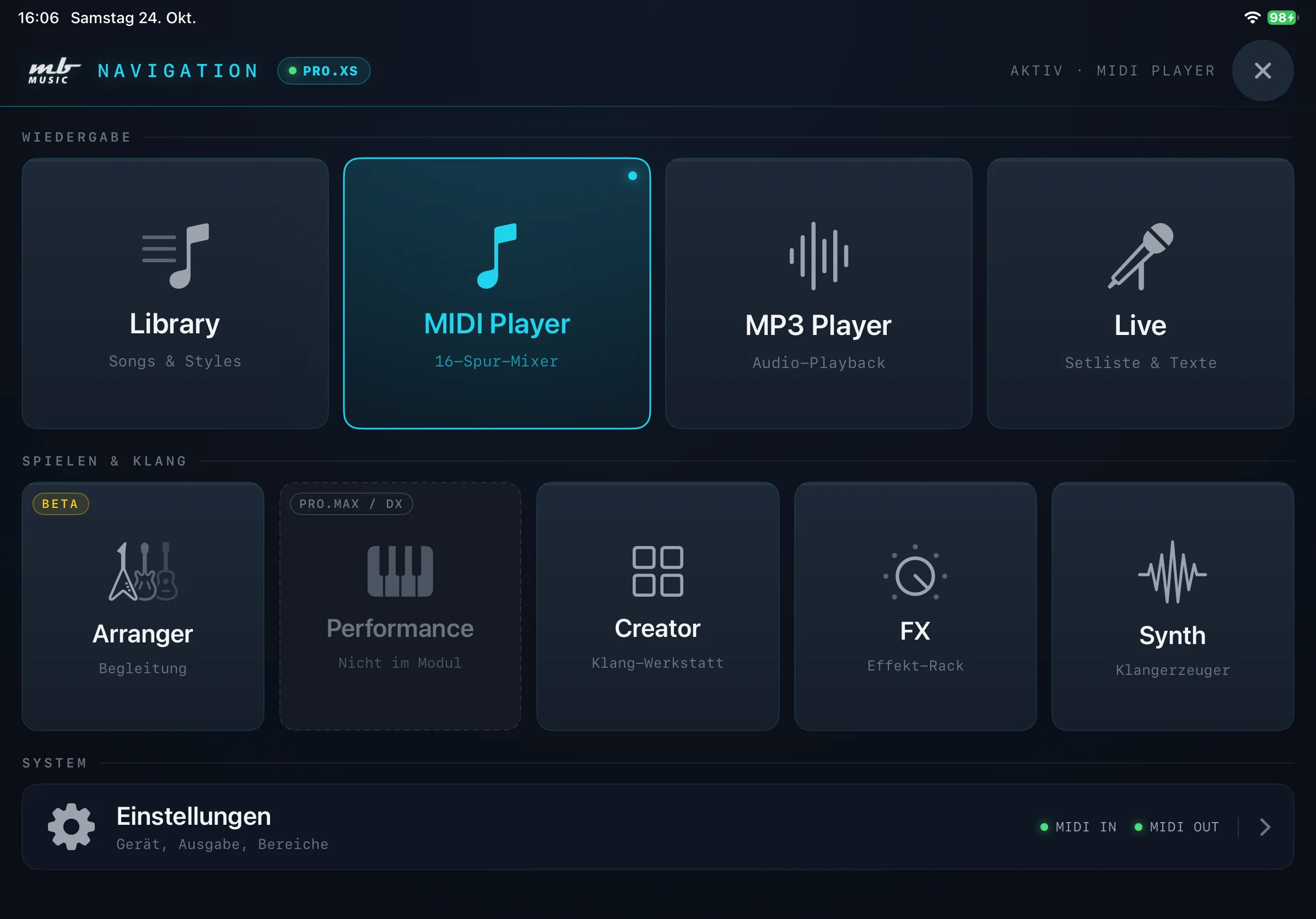
The HUB shows all areas as large tiles in three rows:
- WIEDERGABE (playback): Library, MIDI Player, MP3 Player and Live.
- SPIELEN & KLANG (play & sound): Arranger (with BETA badge), Performance, Creator, FX and Synth.
- SYSTEM: Einstellungen – with two lights for MIDI IN and MIDI OUT. Green means connected.
Tap a tile to open that area. The active area lights up. Close the HUB with ✕ or by swiping down. With a Pro.XS, the Performance tile is locked and carries the note PRO.MAX / DX.
Library & SetLists
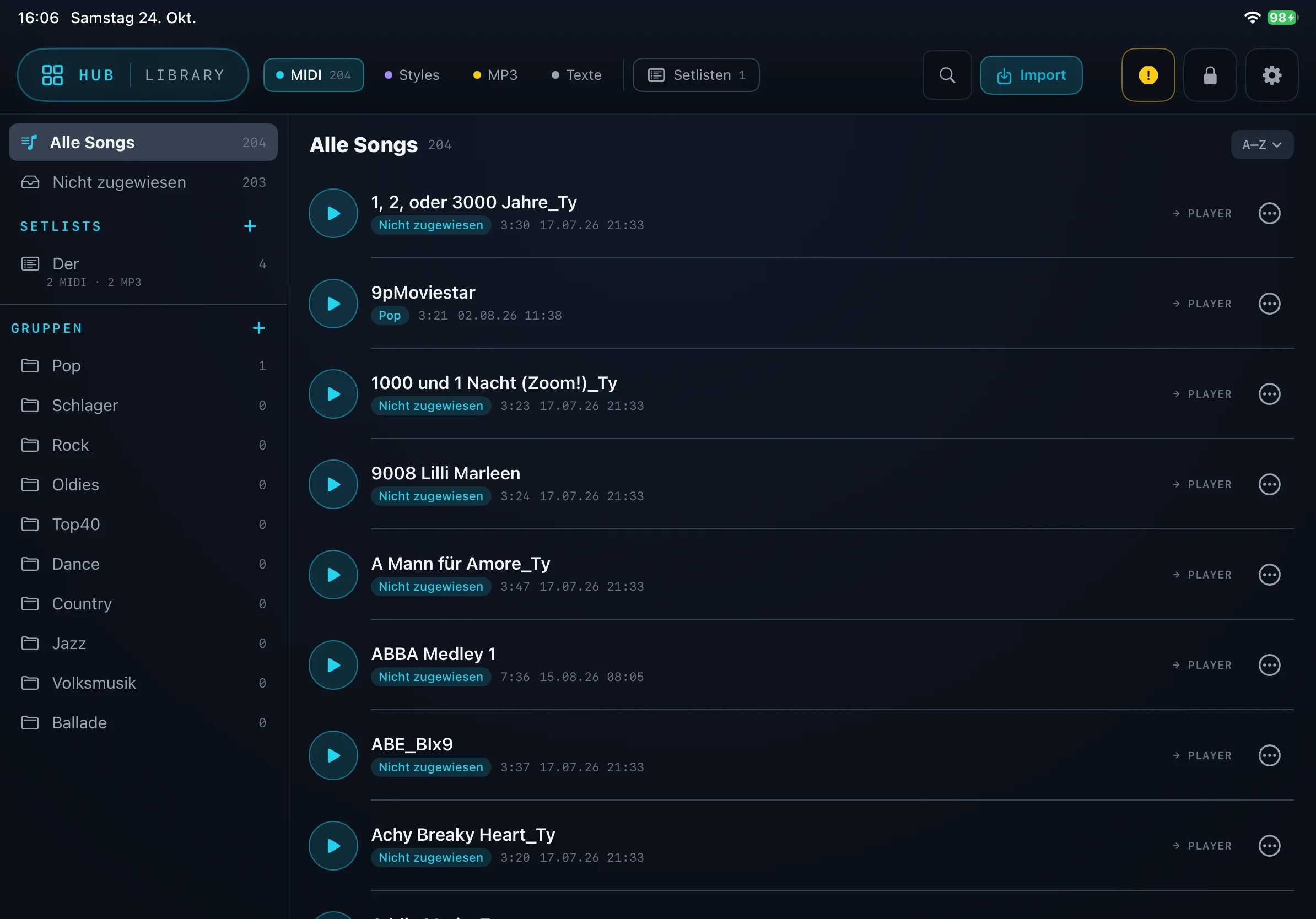
The Library is your music cabinet. All MIDI songs, styles and MP3s are kept in one place – plus lyrics as a PDF, text or Markdown file that you can read full-screen.
Importing songs
- Place your files in iCloud Drive, e.g. from your computer.
- In the app, open the Library and tap Import at the top right.
- Select the files. From now on they are permanently stored in the Library.
If a song already exists, the app asks: Ersetzen (replace), Beide behalten (keep both) or Überspringen (skip). You buy MIDI songs from a Midifile provider; the app itself contains no songs.
Keeping order
- At the top, choose what you want to see: MIDI, Styles, MP3, Texte (lyrics) or Setlisten (setlists). The number shows how many entries there are.
- The list is sorted alphabetically (A–Z) and shows group, length and import date.
- Use the magnifying glass to find any title in seconds.
- Groups sort your songs, e.g. by genre or as favourites. Create new groups on the left with +. Songs not yet sorted appear under Nicht zugewiesen (unassigned).
- Tap ▶ to listen to a song directly; → PLAYER opens it in the player; the ⋯ menu offers further actions.
SetLists for your gig
A SetList is the running order of your performance. MIDI songs, styles and MP3s may be mixed within it. When you move on, the app automatically switches to the matching player – you don’t have to search for anything on stage.
Library tips: Create a separate SetList for every gig. Back up your collection regularly under Einstellungen → SICHERUNG as a ZIP file.
MIDI Player
The MIDI Player plays MIDI files through your module – including karaoke files with the extension .kar. A MIDI file is like a sheet of music for 16 musicians: each channel (also called a track) is one instrument.
Playing back
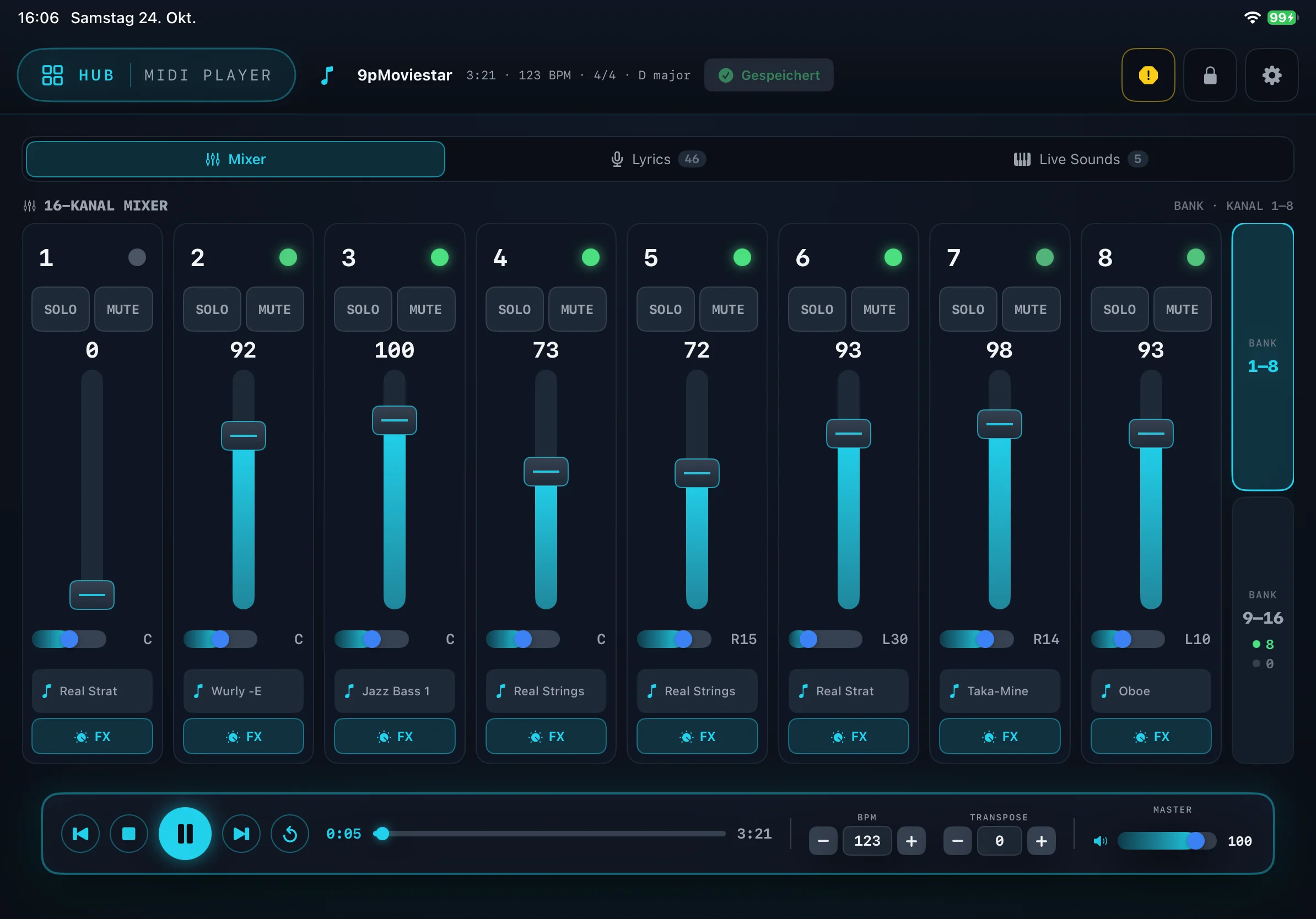
At the bottom is the transport bar: rewind, stop, play/pause, forward and repeat, plus the timeline. On the right you set the BPM (tempo), TRANSPOSE (key in semitones) and the MASTER volume. Markers snap exactly to the start of a bar.
The 16-channel mixer
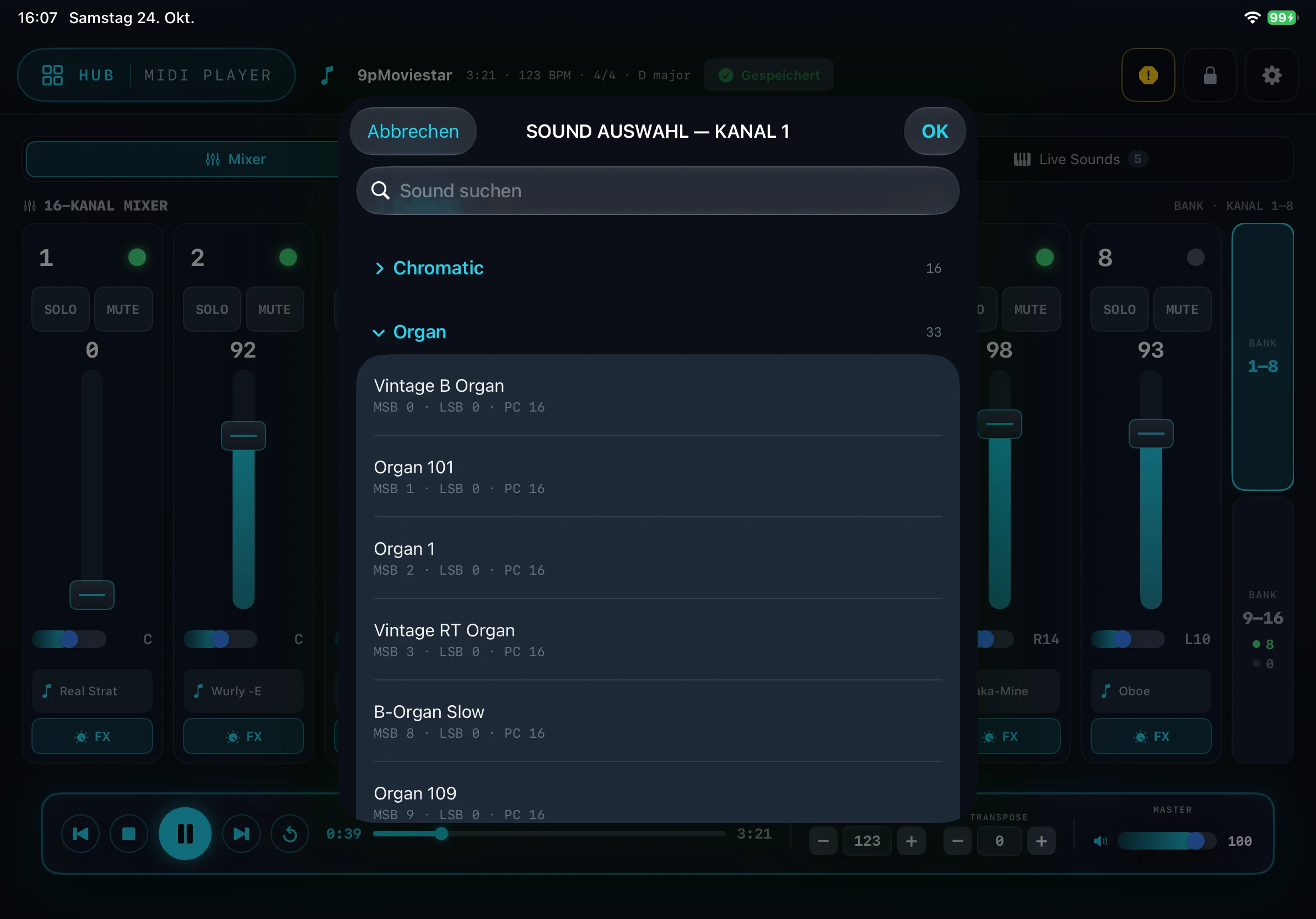
Under Mixer you see a separate fader strip for each channel. The 16 channels are split into two banks (1–8 and 9–16) so the faders are large enough for the stage. On the right, switch between them with BANK 1–8 and BANK 9–16.
- Light: lights up when the channel is currently playing notes.
- SOLO plays only this channel, MUTE silences it.
- Fader for volume (0–127, the value is shown above it), Pan control for left/right (C = centre, e.g. L30 or R15).
- Sound button with the note symbol and sound name: opens the Sound Auswahl (sound selection). Choose from the module’s complete sound set, sorted by category, or search with Sound suchen (search sound). OK applies the sound.
- FX: the amount of reverb and chorus and the assignment of insert effects for this channel.
Live Sounds
The first 16 sound setups from the Creator appear as large buttons in the Live Sounds tab. A tap switches the sound for your keyboard instantly. This can also be saved per song.
Good to know: With Speichern (save) the app remembers your mix per song. Afterwards a green Gespeichert (saved) appears at the top. The original file stays unchanged – the next time you open it, your settings are back.
Lyrics & Chords
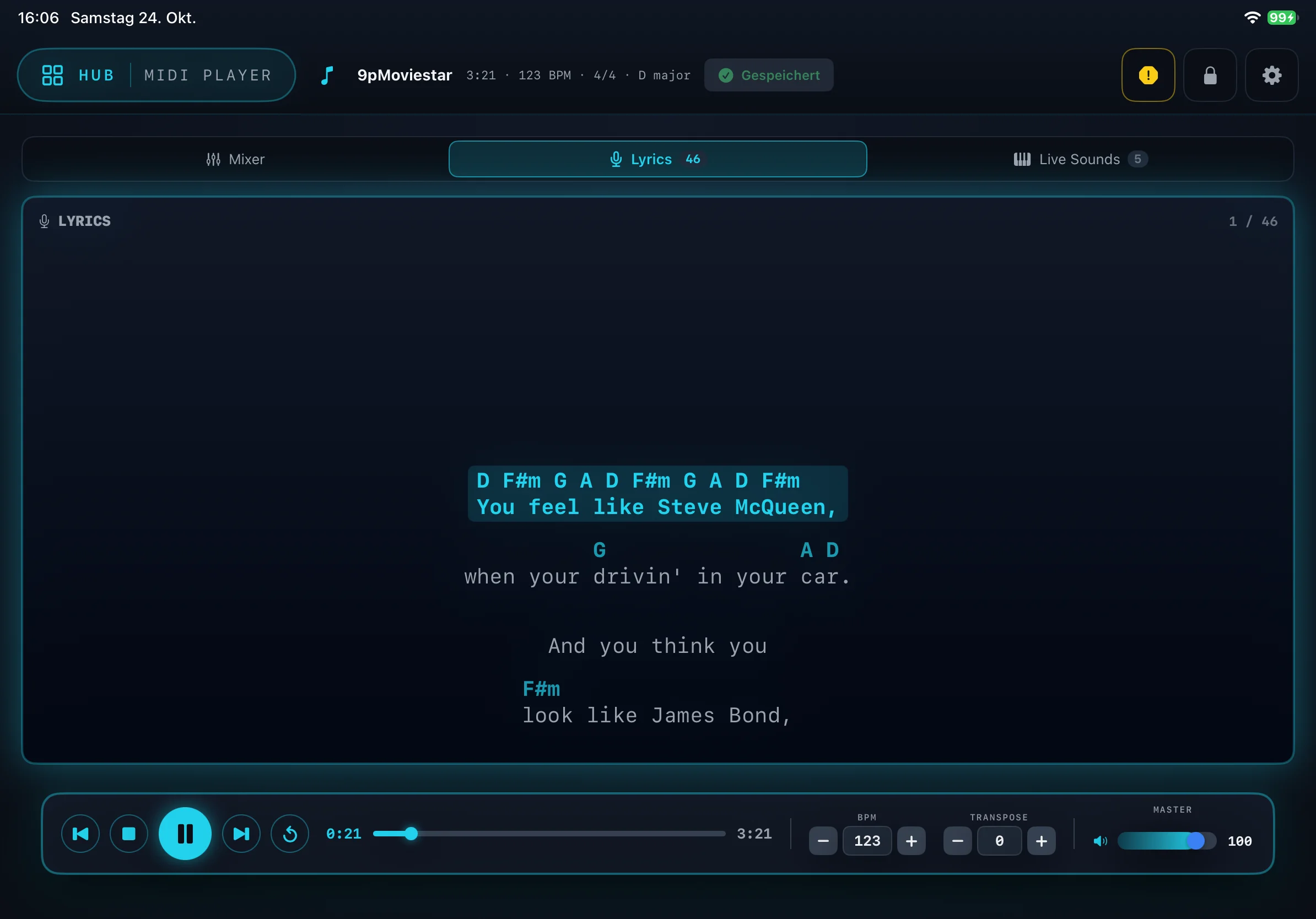
If a MIDI file contains lyrics, the MIDI Player shows them in the Lyrics tab, scrolling along. The current line is highlighted and the text keeps scrolling on its own. The number next to Lyrics shows how many lines the song has.
Chords above the text
Like in a lead sheet, the app can show the chords exactly above the words where they are played. To turn them on:
- Open Einstellungen → AKKORDE (chords).
- Switch on Akkorde über den Songtext (chords above the lyrics).
- Choose the Schreibweise (notation): International (B / Bb) or Deutsch (H / B).
Chords only appear if the file contains them (Yamaha XF files). Without chord data, the plain lyrics stay on screen.
Good to know: If the text is missing, the file doesn’t contain any. That is not a fault of the app. You can also show the lyrics large on an iPhone – see Lyrics on iPhone.
MP3 Player
The MP3 Player plays your playbacks and backing tracks – ready-recorded accompaniments.
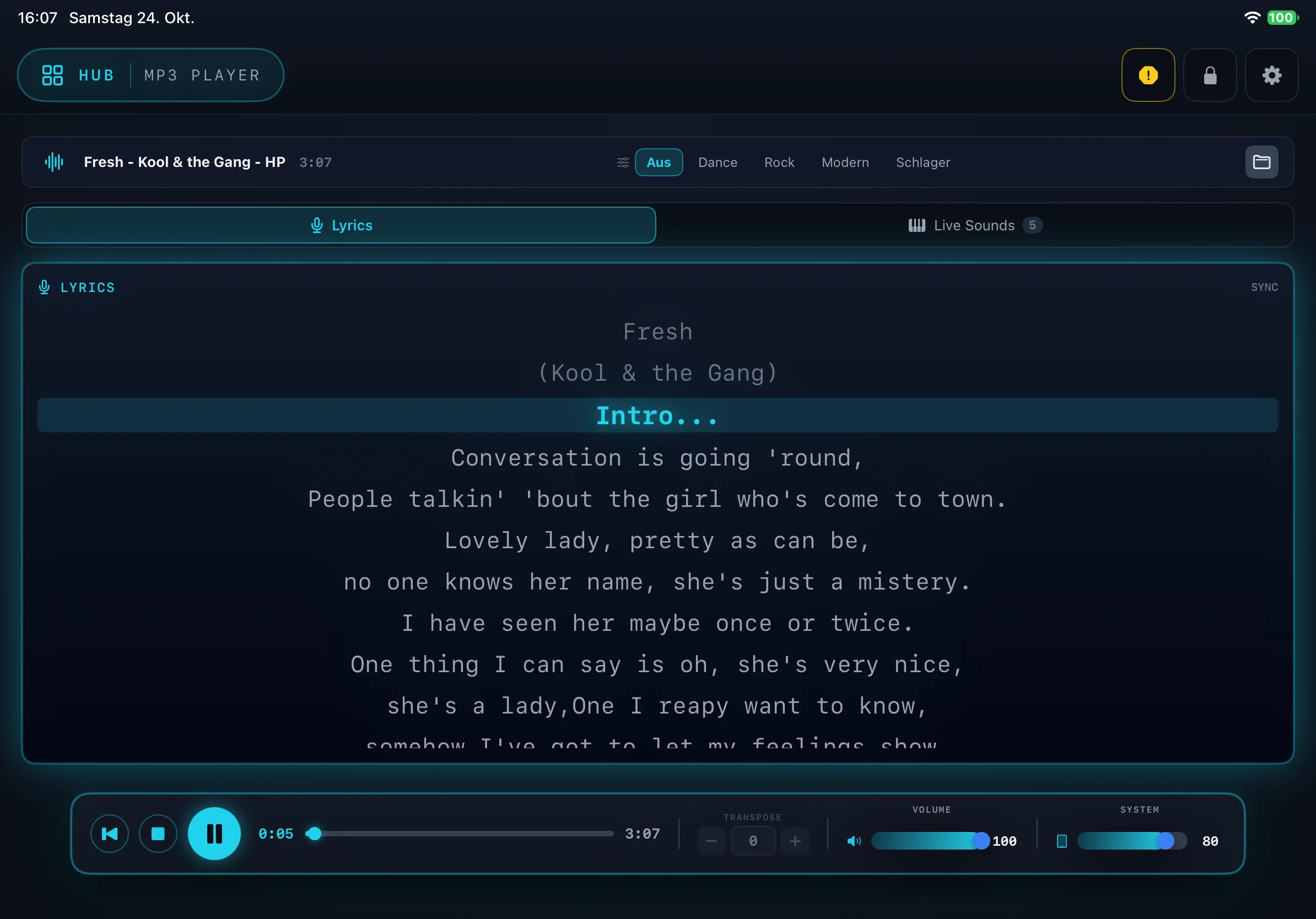
- Lyrics: If the MP3 contains synchronised lyrics, they scroll along just like in the MIDI Player. Otherwise you see a sound visualisation.
- Sound presets: Use the FX presets to adjust the sound of the playback, e.g. Dance, Rock, Modern or Schlager (German pop). Aus (off) plays the playback unchanged.
- Opening a track: Use the folder icon on the right to choose an MP3.
- Transport bar: play/pause, stop, timeline, TRANSPOSE, and the VOLUME and SYSTEM controls.
- Audio output: under Einstellungen → GERÄTE → Audio-Ausgang · MP3 Player you choose which output the playback goes through, e.g. the iPad speaker or an audio interface.
Good to know: The MIDI Player and MP3 Player don’t run at the same time. If you start one, the other stops. In demo mode the MP3 Player plays only 20 seconds per launch.
Live mode
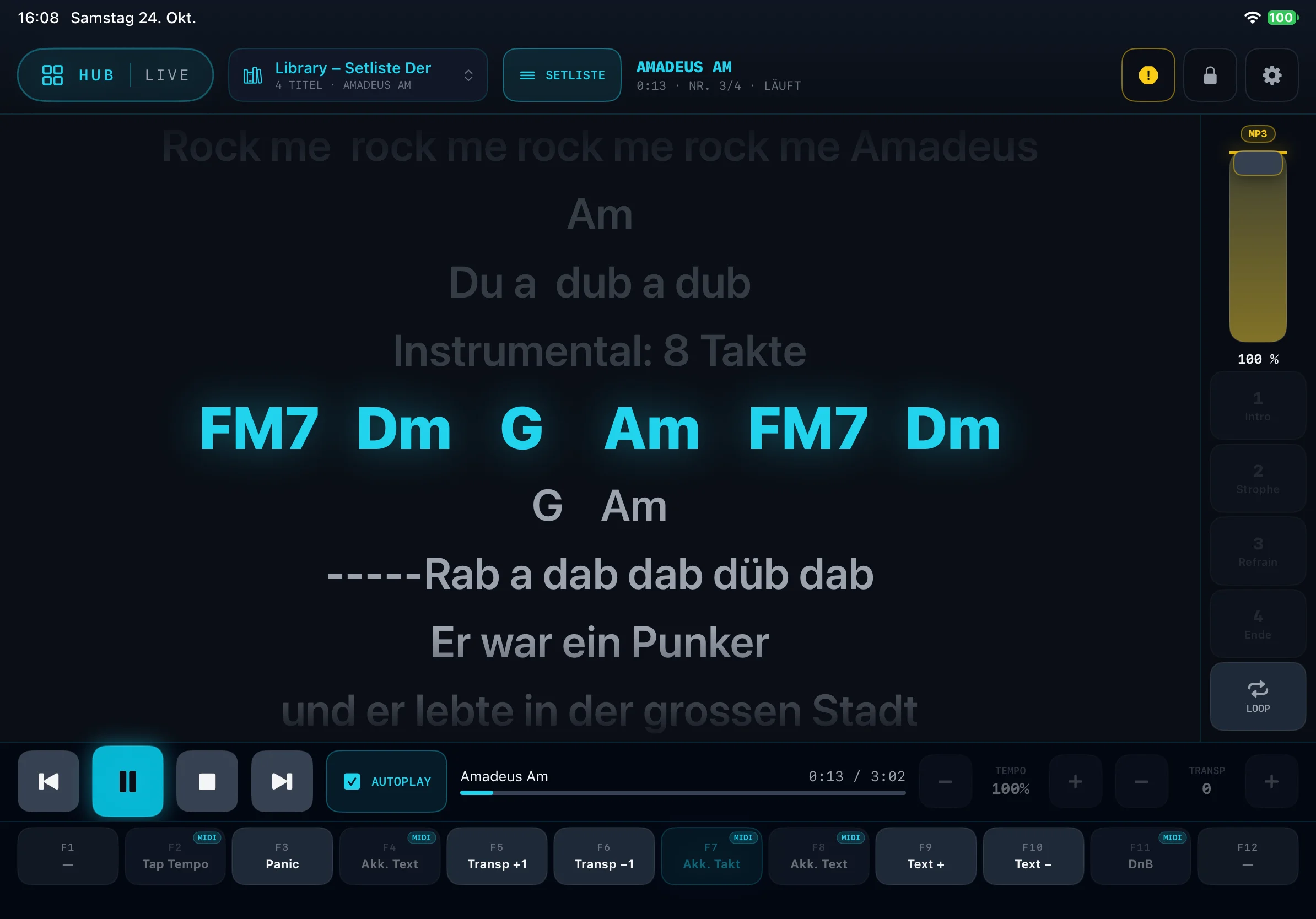
The Live area is built for the stage. It pulls your songs straight from a SetList or group in the Library and shows title, lyrics, chords and transport large and easy to read.
- At the top, tap Library ▾ and choose a SetList or group.
- The titles appear in order. The song currently playing is marked.
- Start with ▶. With AUTOPLAY, it moves on by itself after each song.
Function keys F1–F12
Twelve large buttons keep important actions within reach. You assign them yourself: press and hold a button, choose an action under FUNKTION BELEGEN (assign function), and decide whether it works as a SCHALTER (switch, on/off) or an AUSLÖSER (trigger, single press). Typical assignments:
- Lead#1 / Lead#4: switches the song’s melody voice off and on again. You play the melody yourself without changing the song.
- Drum solo / Bass solo, Akkorde ein/aus (chords on/off), Tap-Tempo (tap tempo), Transponieren (transpose).
- Song vor / zurück (song forward/back), SetList and Panik (panic).
With Loop you repeat a section such as Intro, Strophe (verse) or Refrain (chorus) until you move on.
Lyrics on iPhone
Your singer, vocalist or band want to read along? The app sends the current lyrics over Wi-Fi in real time to an iPhone or a second iPad. This works for MIDI and MP3 songs.
How to set it up
- The iPad and iPhone must be on the same Wi-Fi network.
- On the iPad, go to Einstellungen → LYRICS-SPIEGEL → Texte streamen (stream lyrics) and switch it on.
- On the iPhone, open the MBMusic PRO.App and tap Verbinden (connect).
- The first time, iOS asks for access to the local network. Allow it on both devices.
Up to 7 devices can read along at the same time. Each person sets the font size and colour scheme on their own iPhone.
Large chords on the iPhone
If you wish, the iPhone can show the current and next chord large – with a countdown to the change. You switch this display on and off directly on the iPhone, not on the iPad.
Tips if the iPhone can’t find the iPad: Are both devices on the same Wi-Fi network? Is local network access allowed on both (iOS-Einstellungen → Datenschutz → Lokales Netzwerk)? Is the app open on both devices and Texte streamen switched on?
Arranger (Beta)
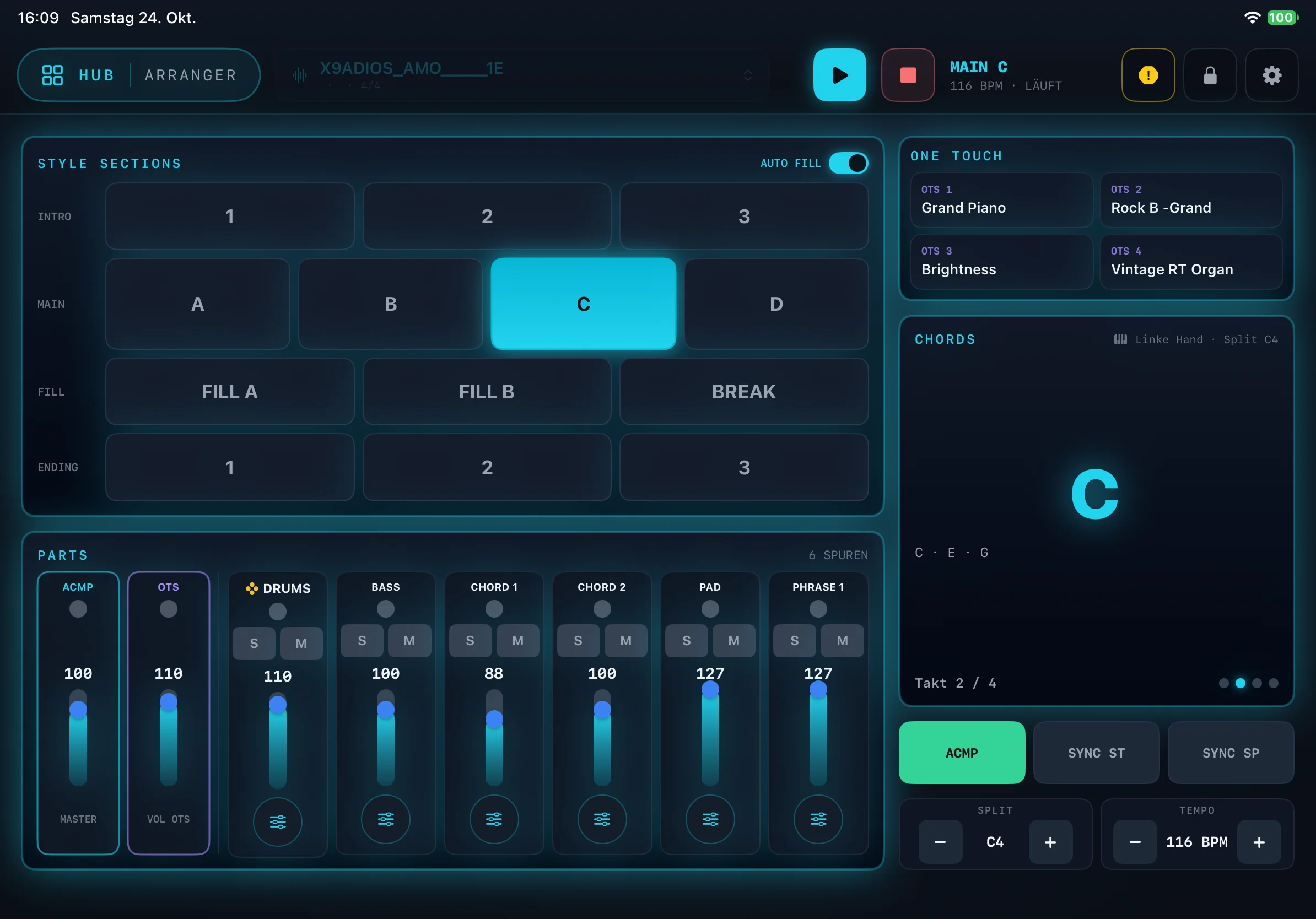
The Arranger is your backing band: you play the chords, and the app plays drums, bass and accompaniment to go with them. The template for this is called a Style.
- In the HUB, open the Arranger and choose a style.
- Start with an Intro and play chords with your left hand. The app recognises them – including inversions – and switches cleanly on the beat.
- Switch between variations, insert fill-ins and finish with an Ending. You can do this with a button in the app or with the keys or pads on your keyboard.
- STYLE SECTIONS: INTRO 1–3, MAIN A–D, FILL A, FILL B, BREAK and ENDING 1–3. With AUTO FILL, the app automatically plays a fill-in when you change variation.
- PARTS: for each track (e.g. DRUMS, BASS, CHORD 1, PAD) there is S (solo), M (mute) and a fader. ACMP controls the entire accompaniment, OTS the melody sounds.
- Track editor: use the control icon below each track to set sound, octave, panorama, reverb, chorus and volume individually, and save everything as your own style.
- ONE TOUCH: four quick-select buttons (OTS 1–4) for the melody sounds of the right hand.
- CHORDS: shows the recognised chord large, along with its notes and the current bar.
- ACMP, SYNC ST, SYNC SP: accompaniment on/off, start with the first chord, stop when you release the keys. With SPLIT you set the split point for the left hand, with TEMPO the tempo.
- Style files: Yamaha styles (PSR, Tyros, Genos) can be used. The sound, however, always comes from your MB Music module.
Good to know: The Arranger is still in testing and carries the BETA badge in the HUB. It is usable, but it is being improved continuously. If the chords come in too late or unevenly, set the Vorlauf (lead-in, default: 20 ms) under Einstellungen → ARRANGER.
Performance
The performance bank is a quick-select for sound changes at the press of a button. Tap and play – no menus. Ideal if you want to jump live between piano, organ and strings.
Good to know: The performance bank is only available with the Pro.Max and Pro.DX. With a Pro.XS, the tile in the HUB is locked.
Creator
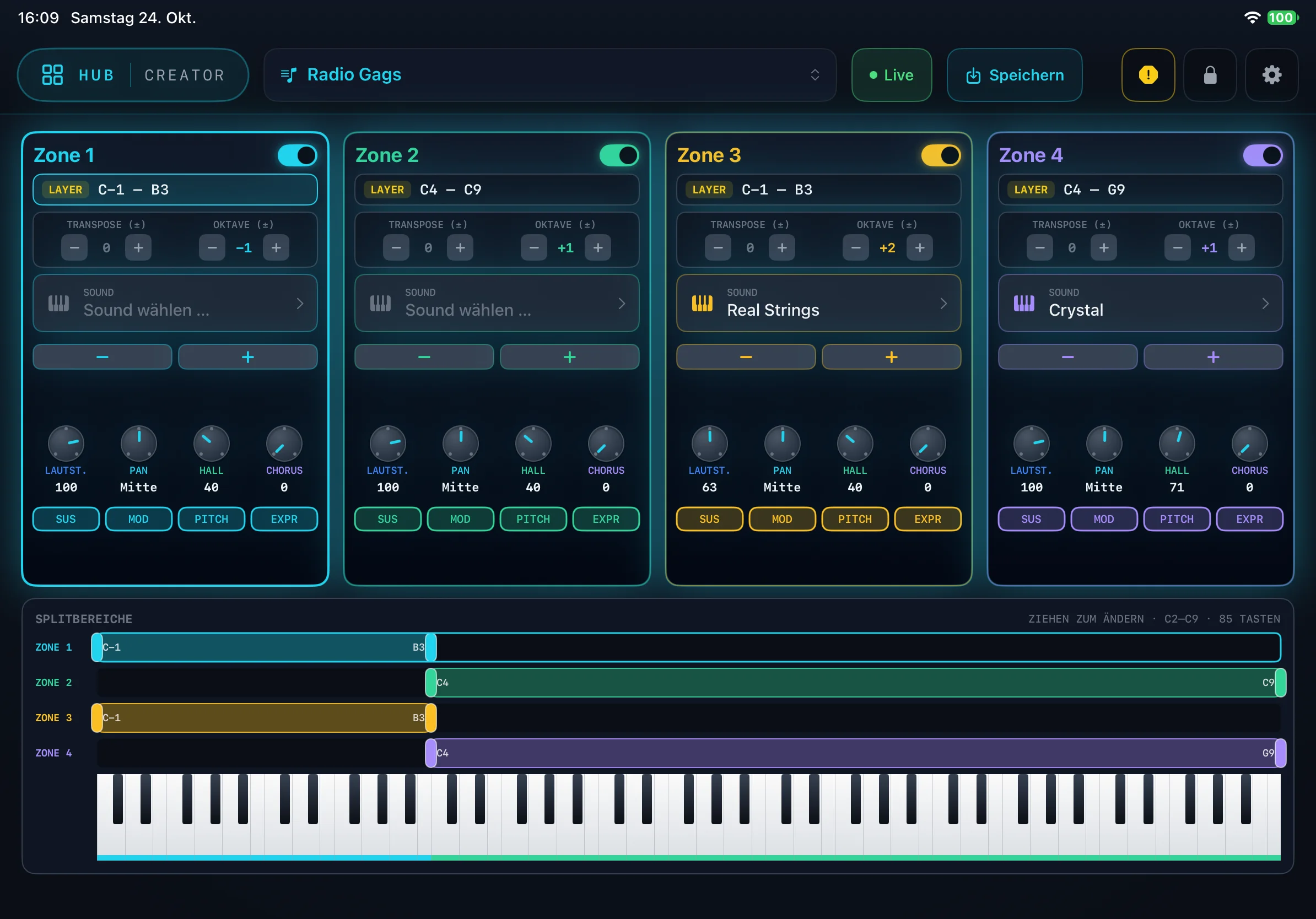
In the Creator you build your own sound setups and play them live on your keyboard.
- Zones: up to four zones divide the keyboard into areas (up to C9), each with its own sound. Sounds may also be layered on top of each other (LAYER). You switch each zone on or off with its switch at the top right.
- Sound: tap Sound wählen … (choose sound) or scroll through the sounds with − and +.
- Per zone you set TRANSPOSE and OKTAVE (octave), adjust LAUTST. (volume), PAN, HALL (reverb) and CHORUS, and switch SUS, MOD, PITCH and EXPR on or off.
- SPLITBEREICHE: drag the handles of the coloured bars to change the key range of each zone. The keyboard below shows the result.
- At the top, select the setup, switch to your keyboard with Live, and secure it with Speichern (save).
- Save as a copy: this lets you try out changes without losing the original.
- The first 16 setups appear as Live Sounds in the MIDI Player.
Under Einstellungen → CREATOR → Standard-Performance (default performance) you choose which setup is ready to play as soon as the app starts.
FX
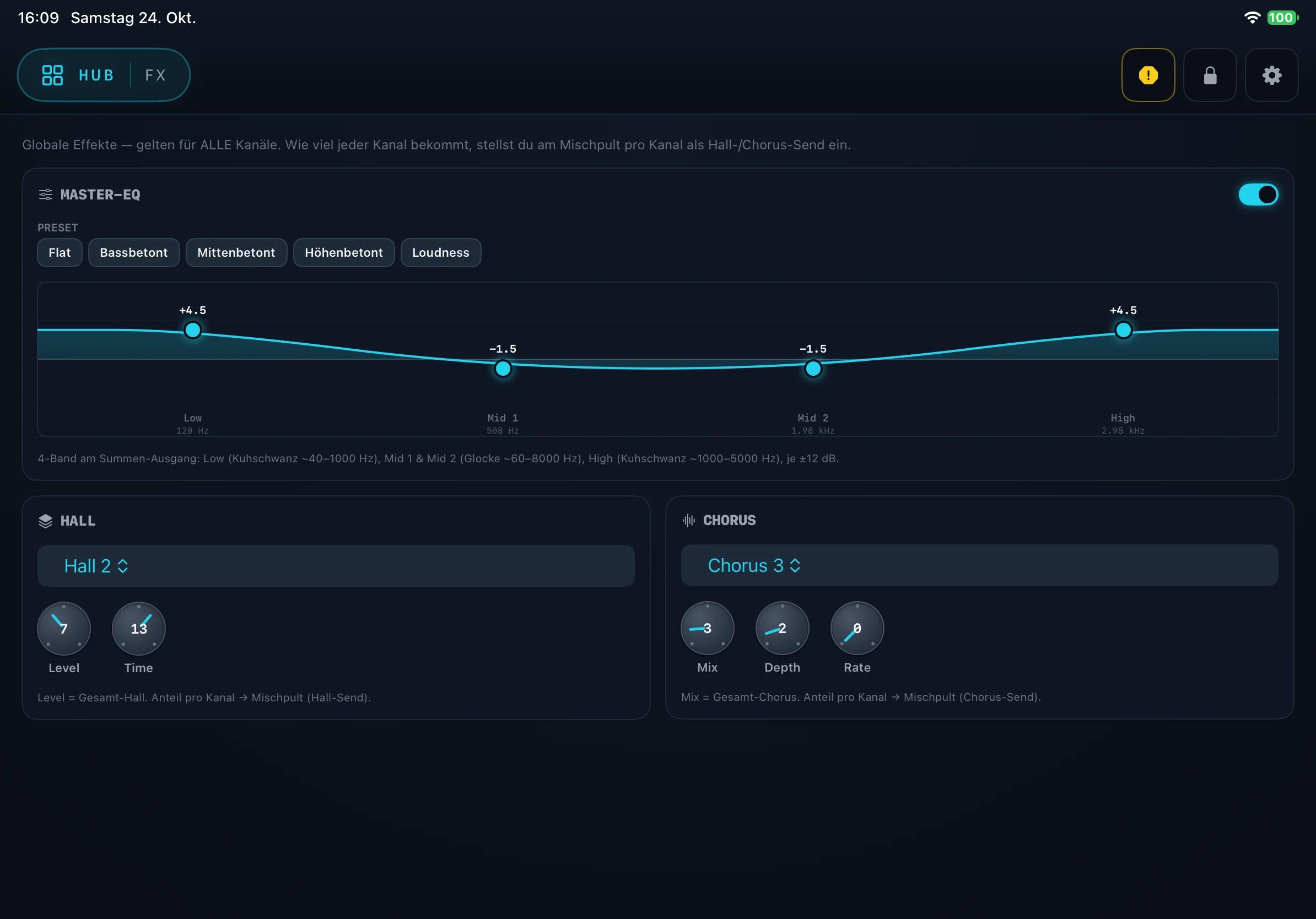
FX is the effects centre. The global effects apply to all channels. How much of them each channel receives is set in the mixer, per channel, as a reverb or chorus share (send).
- MASTER-EQ: four bands on the overall output – Low, Mid 1, Mid 2 and High, each ±12 dB. Drag the points on the curve or choose a preset: Flat, Bassbetont (bass-boosted), Mittenbetont (mid-boosted), Höhenbetont (treble-boosted) or Loudness. The switch at the top right turns the EQ on and off.
- HALL: choose the reverb type (e.g. Hall 2) and adjust Level (overall reverb) and Time (reverb tail length).
- CHORUS: choose the chorus type and adjust Mix (overall chorus), Depth and Rate.
- FX 1–3: insert effects such as dynamics (e.g. compressor), EQ or modulation / wah / tremolo. Switch each block on individually and assign it to specific channels in the mixer.
Synth
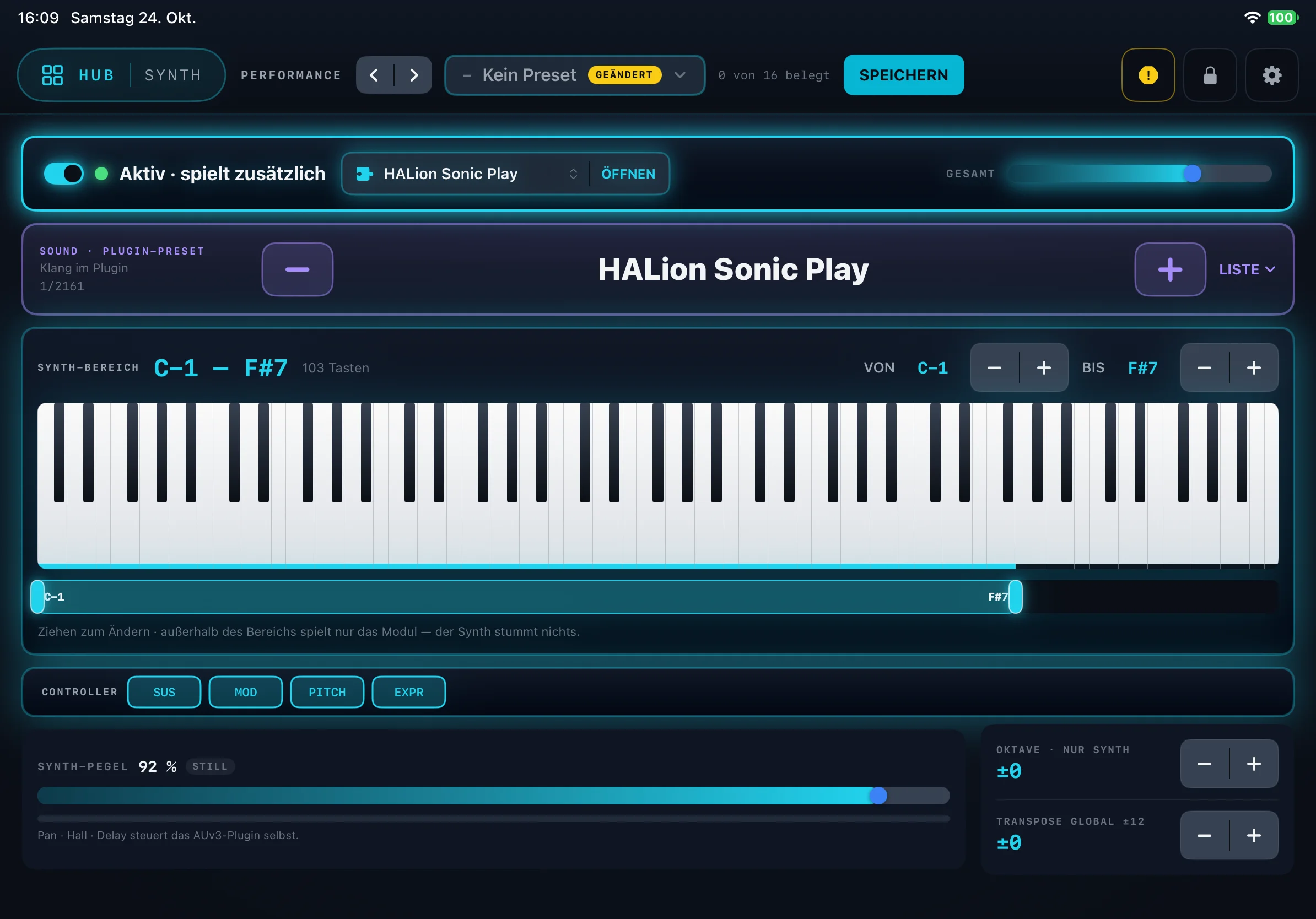
The Synth is a second instrument right inside the iPad. It sounds alongside your module – and it is the only area where the sound comes from the iPad itself.
- On/off: the switch at the top turns the synth on. Aktiv · spielt zusätzlich (active · plays additionally) means it sounds in addition to the module. GESAMT (total) controls its overall volume.
- Sound source: the built-in sounds, or an instrument app that you load as a plug-in (AUv3 / Audio Unit), e.g. HALion Sonic Play. ÖFFNEN (open) shows the plug-in’s interface.
- SOUND · PLUGIN-PRESET: use − and + to flip through the plug-in’s sounds; LISTE (list) shows them all at once.
- SYNTH-BEREICH (synth range): set it with VON (from) and BIS (to), or by dragging, to choose which part of the keyboard the synth plays. Outside this range, only the module plays.
- CONTROLLER: switch SUS (sustain), MOD (modulation), PITCH (pitch bend) and EXPR (expression) on or off individually.
- SYNTH-PEGEL (synth level), OKTAVE · NUR SYNTH (octave · synth only) and TRANSPOSE GLOBAL. The plug-in itself controls panorama, reverb and delay.
- PERFORMANCE: save the whole combination at the top with SPEICHERN. There are 16 slots; use the arrows to switch between them.
Good to know: The synth sound comes from the audio output of the iPad. It only blends with the module sound at your mixing desk or amplifier. So connect the iPad to your sound system as well.
Einstellungen (Settings)
You open the Einstellungen (settings) with the gear icon at the top right, or via Einstellungen in the HUB. The most important areas:
- GERÄTE (devices): MIDI-Eingang · Live-Keyboard (MIDI input), MIDI-Ausgang · MBMusic-Modul (MIDI output, each with a light) and Audio-Ausgang · MP3 Player (audio output). In demo mode you’ll find Modus wechseln (Demo / Lyrics) … (switch mode) here.
- WIEDERGABE (playback): AutoPlay beim Laden (autoplay on load) starts a MIDI song as soon as it is loaded. Vorlauf automatisch entfernen (remove lead-in automatically) cuts the silence at the start of a song.
- ARRANGER: the Vorlauf (lead-in) for even timing.
- CREATOR: the Standard-Performance (default performance) at startup.
- AKKORDE (chords): Akkorde über den Songtext and the Schreibweise (notation).
- LYRICS-SPIEGEL (lyrics mirror): Texte streamen (stream lyrics) to the iPhone.
- DATENSCHUTZ (privacy): Anonyme Nutzungsstatistik (anonymous usage statistics). It only shows which areas are used and for how long – without personal data. You can switch it off at any time.
- SOUND-MAPPING: the Auto-Revoicer replaces unsuitable Yamaha sounds with matching sounds from your module on import.
- SICHERUNG (backup): Sicherung erstellen … (create backup) saves songs, styles, lyrics, performances and settings as a ZIP file in a location of your choice. Wiederherstellen … (restore) plays them back.
- ZURÜCKSETZEN (reset): App auf Werkseinstellungen zurücksetzen (reset app to factory settings) deletes all data and settings. This cannot be undone – back up first!
Tips for the stage
Stage lock
Tap the padlock at the top right and set a PIN. The app is then locked and a screensaver appears – but the music keeps playing without interruption. This way nothing happens if someone accidentally taps the iPad. Use your PIN to unlock it again.
Panic button
If a note gets stuck, tap the yellow octagon at the top right. It instantly silences all sounds – in the player, in the module and in the synth.
Tips before the gig:
- Prepare the SetList and run through it once from start to finish.
- Save each song’s mix with Speichern.
- Check the power supply of the USB hub – without power there is no sound with the Pro.DX and Pro.XS.
- Create a backup as a ZIP file beforehand.
- Switch on the stage lock before you start.
Gestures & shortcuts
The most important actions in the app – and the keys for this manual:
| Tap HUB | Open the area overview |
| Double-tap HUB | Back to the area you used last |
| Swipe down in the HUB | Close the HUB (like ✕) |
| Yellow octagon | Panic – all sounds off |
| Press and hold the Live button | Assign function |
Small glossary
- MIDI: a language in which instruments exchange notes. A MIDI file contains notes, not sound.
- Channel / Track: one of 16 voices in a MIDI file, e.g. bass or drums.
- Style: an accompaniment template for the Arranger with intro, variations, fill-ins and ending.
- Playback: a ready-recorded accompaniment, usually as an MP3.
- Transpose: shifting the song higher or lower, in semitones.
- Split / Zone: dividing the keyboard into areas with their own sounds.
- Plug-in (AUv3): an instrument app that plays along inside another app.
- Active USB hub: a USB splitter with its own power supply.
- Wi-Fi: the wireless network at home or at your venue.
Help & FAQ
I can’t hear any sound. What should I do?
“DEMO MODE” appears at the top. Why?
The lyrics or chords are missing.
The iPhone won’t connect.
Does this also work via Bluetooth?
Does the app work with devices from other manufacturers?
Where do I get songs?
Is the app available for Android, Windows or Mac?
Where can I get help?
Still have questions? We’re here for you personally.
Write to us → info@mbmusic-pro.de